 Gitv2.56BEGINNER
Git
Git cheat sheet with commands for branching, merging, rebasing, stashing, cherry-picking, and advanced version control techniques.
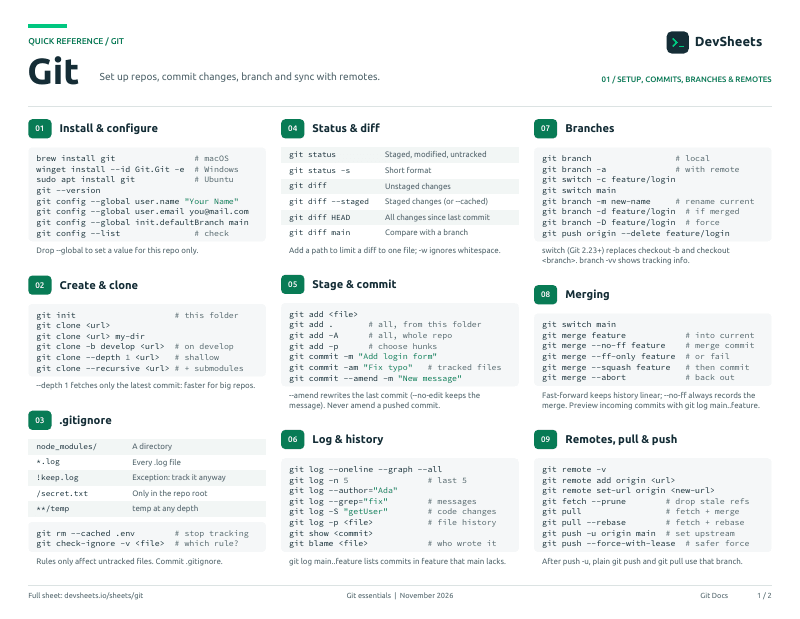
PDF · 2 pages
Git PDF cheat sheet
A two-page Git reference for printing or offline use.
Setup
Install Git, verify the CLI, and set the identity used in commits.
Install Git on your platform and complete the first-time identity setup.
# macOS
brew install git

# Windows
winget install --id Git.Git -e --source wingetGetting Started
Configure Git for first time use with your identity
# Set user info (required for commits)
git config --global user.name "Your Name"
git config --global user.email "email@example.com"

# Set default branch name
git config --global init.defaultBranch main

# Check settings
git config --listStart a new project or get an existing one
# Create new repository
git init
git init <directory>

# Clone existing repository
git clone <url>
git clone <url> <directory>

# Clone and check out a specific branch
git clone -b <branch> <url>Tell Git which files and directories to ignore
# Create .gitignore in repo root
# Common patterns:
node_modules/
.env
.env.local
dist/
build/
*.log
.DS_Store
.vscode/
.idea/

# Stop tracking a file that's already committed
git rm --cached <file>
git rm -r --cached <directory>Making Changes
See what has changed in your working directory
# Check status
git status
git status -s  # Short format

# View changes
git diff              # Unstaged changes
git diff --staged     # Staged changes
git diff HEAD         # All changes
git diff <branch> # Compare with branchSave your work to the repository history
# Stage files
git add <file>
git add .              # All changes in current dir
git add -A             # All changes in whole repo
git add -p             # Interactive staging

# Commit
git commit -m "message"
git commit -am "message"  # Add + commit tracked files
git commit --amend # Modify last commitBranching
Create, list, and delete branches for parallel development
# List branches
git branch            # Local
git branch -r         # Remote
git branch -a         # All

# Create and switch (modern, Git 2.23+)
git switch -c <name>
git switch <branch>

# Older equivalents
git checkout -b <name>
git checkout <branch>

# Delete branch
git branch -d <branch>  # Safe (merged only)
git branch -D <branch> # Force deleteCombine changes from one branch into another
# Merge a branch into current
git merge <branch>

# Common variants
git merge --no-ff <branch>     # Always create a merge commit
git merge --ff-only <branch>   # Fail if can't fast-forward
git merge --squash <branch>    # Squash into one commit (then commit)

# Bail out of a merge in progress
git merge --abortReplay commits on top of another base for a linear history
# Rebase current branch onto another
git rebase <branch>
git rebase main

# Interactive rebase (rewrite, reorder, squash)
git rebase -i HEAD~3

# Inside the interactive editor:
# pick    = keep commit
# reword  = change message
# edit    = stop to amend
# squash  = combine with previous (keep both messages)
# fixup   = combine with previous (drop this message)
# drop    = remove commit

# During a rebase
git rebase --continue   # After resolving conflicts
git rebase --skip       # Skip the current commit
git rebase --abort # Cancel and resetApply specific commits from another branch onto the current one
# Apply a single commit
git cherry-pick <commit>

# Apply a range (exclusive..inclusive)
git cherry-pick <start>..<end>

# Apply without committing (stage only)
git cherry-pick -n <commit>

# After resolving conflicts
git cherry-pick --continue
git cherry-pick --abort
git cherry-pick --skipWorking with Remotes
Connect and sync with remote repositories
# Show remotes
git remote
git remote -v

# Add remote
git remote add origin <url>

# Change remote URL
git remote set-url origin <new-url>

# Remove remote
git remote remove origin

# Rename remote
git remote rename origin upstreamStashing Changes
Store uncommitted changes for later without committing
# Stash changes
git stash
git stash push -m "description"

# View stashes
git stash list

# Apply stash
git stash apply         # Apply latest
git stash apply stash@{n}  # Apply specific
git stash pop           # Apply and delete

# Delete stash
git stash drop stash@{n}
git stash clear # Delete allFixing Mistakes
Revert uncommitted changes in your working directory
# Discard changes to a file (modern, Git 2.23+)
git restore <file>
git restore .             # All files

# Unstage a file (keep edits)
git restore --staged <file>

# Older equivalents
git checkout -- <file>
git reset HEAD <file>

# Nuke all local changes
git reset --hard HEAD
git clean -fd # Remove untracked files/dirsUndo committed changes by creating new commits
# Revert a commit (safe — creates an inverse commit)
git revert <commit>
git revert HEAD          # Revert last commit

# Revert a range (exclusive..inclusive)
git revert <start>..<end>

# Revert a merge commit (-m 1 = keep first-parent line)
git revert -m 1 <merge-commit>

# Reset to a commit (⚠️ rewrites history)
git reset --hard <commit>Find and recover commits that look "lost" after rewrites
# Show the reflog (HEAD movement history)
git reflog
git reflog --all          # All refs, not just HEAD

# Entries look like:
# abc1234 HEAD@{0}: rebase (finish): returning to refs/heads/feature
# def5678 HEAD@{1}: rebase (pick): WIP fix
# 0123abc HEAD@{2}: rebase (start): checkout main

# Recover by SHA or HEAD@{n}
git reset --hard HEAD@{1}
git reset --hard <sha>

# Safer: branch off the recovered commit
git switch -c recovery HEAD@{1}Merge Conflicts
Handle and fix merge conflicts when combining branches
# During merge conflict
git status              # See conflicted files

# Resolve conflicts manually, then:
git add <resolved-file>
git commit             # Complete merge

# Abort merge
git merge --abort

# Use specific version
git checkout --ours <file>    # Keep current branch
git checkout --theirs <file> # Take other branchViewing History
Explore repository history and find specific commits
# View log
git log
git log --oneline
git log --graph --all
git log -n 5           # Last 5 commits

# Search commits
git log --grep="keyword"
git log --author="name"
git log --since="2 weeks ago"

# File history
git log -- <file>
git log -p <file>      # With changes
git blame <file> # Line-by-line authorshipTags & Releases
Mark specific commits as releases or milestones
# List tags
git tag
git tag -l "v1.*"     # Pattern matching

# Create tag
git tag v1.0.0
git tag -a v1.0.0 -m "Version 1.0.0"  # Annotated

# Tag specific commit
git tag v1.0.0 <commit>

# Push tags
git push origin v1.0.0
git push origin --tags

# Delete tag
git tag -d v1.0.0
git push origin --delete v1.0.0Advanced Techniques
Include other Git repositories within your project
# Add submodule
git submodule add <url> <path>

# Clone with submodules
git clone --recurse-submodules <url>

# Update submodules
git submodule update --init
git submodule update --remoteBinary search through history to find the commit that introduced a bug
# Start bisect
git bisect start
git bisect bad          # Current commit is bad
git bisect good <commit>  # Known good commit

# Test each commit
git bisect good         # Mark as good
git bisect bad          # Mark as bad

# Finish
git bisect resetWork on multiple branches simultaneously in different directories
# Add worktree
git worktree add <path> <branch>
git worktree add ../feature-branch feature

# List worktrees
git worktree list

# Remove worktree
git worktree remove <path>Quick Reference
Common Git workflow for everyday development
# Start your day
git pull origin main

# Create feature branch
git switch -c feature/new-feature

# Make changes
git add .
git commit -m "Add new feature"

# Push to remote
git push -u origin feature/new-feature

# Create pull request (on GitHub/GitLab)

# After PR merged
git switch main
git pull origin main
git branch -d feature/new-featureSet up shortcuts for common Git commands
# Set up aliases
git config --global alias.co checkout
git config --global alias.br branch
git config --global alias.ci commit
git config --global alias.st status
git config --global alias.last 'log -1 HEAD'
git config --global alias.unstage 'reset HEAD --'

# Advanced aliases
git config --global alias.lg "log --graph --pretty=format:'%Cred%h%Creset -%C(yellow)%d%Creset %s %Cgreen(%cr) %C(bold blue)<%an>%Creset' --abbrev-commit"