 VS CodeBEGINNER
VS Code Shortcuts
VS Code keyboard shortcuts cheat sheet for Windows and Mac — editing, navigation, debugging, and terminal commands for productivity.
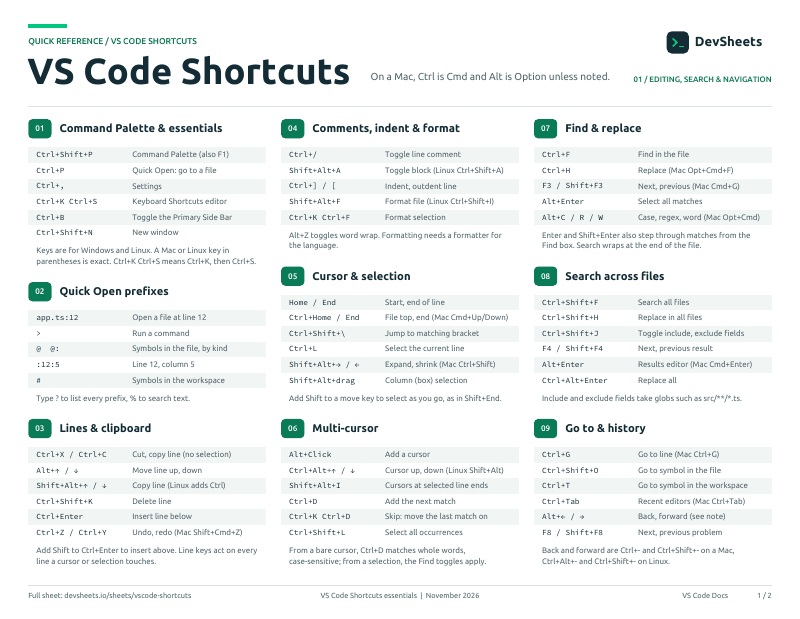
PDF · 2 pages
VS Code Shortcuts PDF cheat sheet
A two-page VS Code Shortcuts reference for printing or offline use.
General
Essential VS Code shortcuts for navigation and commands
Command Palette
Open command palette to access all VS Code commands
Quick Open File
Quickly open files by name
Settings
Open VS Code settings
Toggle Sidebar
Show/hide the sidebar
Toggle Terminal
Show/hide integrated terminal
Editing
Text editing and manipulation shortcuts
Copy Line Up/Down
Duplicate current line above or below
Move Line Up/Down
Move current line up or down
Delete Line
Delete entire current line
Insert Line Below
Insert new line below current line
Toggle Line Comment
Comment/uncomment current line or selection
Navigation
File and code navigation shortcuts
Go to Line
Jump to specific line number
Go to Symbol
Navigate to symbols in current file
Go to Definition
Jump to symbol definition
Go Back/Forward
Navigate back and forward through cursor history
Switch Editor
Cycle through open editor tabs
Search & Replace
Finding and replacing text across files
Find
Search in current file
Replace
Search and replace in current file
Find in Files
Search across all files in workspace
Replace in Files
Search and replace across all files
Find Next/Previous
Navigate through search results
Multi-cursor & Selection
Advanced text selection and editing
Add Cursor Above/Below
Add cursor to line above or below
Select All Occurrences
Select all instances of current word
Select Next Occurrence
Add next occurrence to selection
Add Cursor to Line Ends
Add cursor to end of each selected line
Expand/Shrink Selection
Intelligently expand or shrink selection
Debug & Terminal
Debugging and integrated terminal shortcuts
Start Debugging
Start debugging session
Toggle Breakpoint
Add or remove breakpoint on current line
Step Over
Execute current line and move to next
New Terminal
Create new terminal instance
Focus Terminal
Switch focus to terminal panel